 ESPectre
Place your ESPectre sensor
Distance, antenna orientation, obstacles, and a short room test to find a spot that detects movement and ignores noise.
Sections
Think of a radio link, not a detection cone
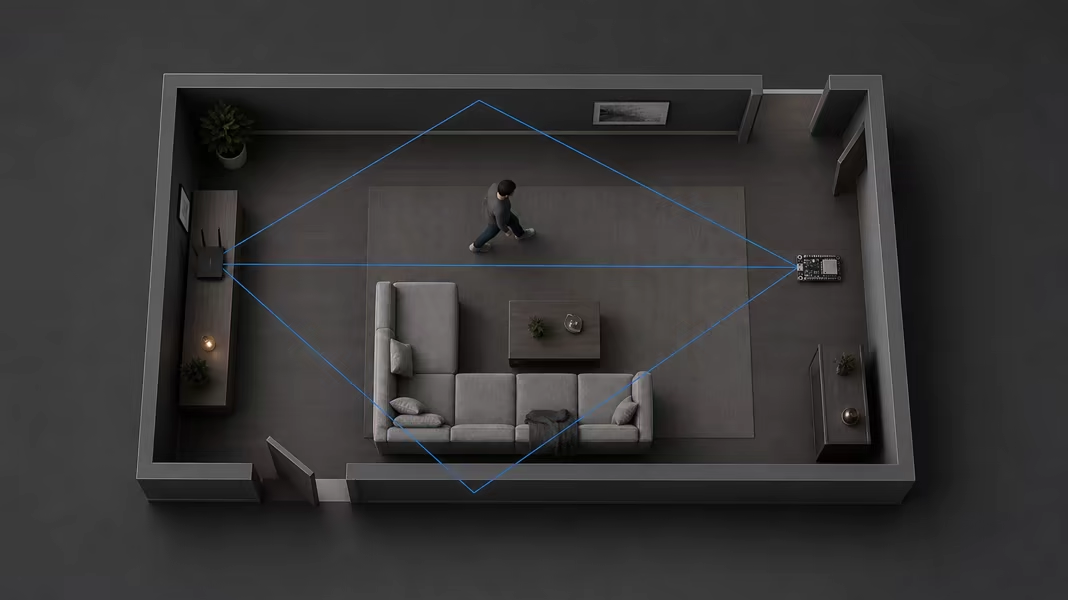
ESPectre does not watch a circle around the board. The access point's signal reaches the ESP32 directly and through many reflections off walls, furniture, and people. Motion is easiest to detect when it changes several of these paths, so the positions of the access point and the sensor, and the route people take, all matter.
A good starting placement
- Put the ESP32 in the area you want to monitor, about 3–8 m from the access point if the layout allows it.
- Choose a spot where people normally walk between the access point and the sensor, not only behind one of them.
- Keep the antenna end of the board open to the room, away from metal, electronics, and large obstacles.
- Mount it firmly. A board or cable that swings, vibrates, or gets moved during cleaning causes false motion on its own.
- Make sure the sensor gets steady traffic, and settle the placement before changing detector settings.
Distance: use RSSI as the final check
Distances are only a starting point: walls, router power, antennas, and furniture all change the link. Use the Wi-Fi signal strength (RSSI) to check the result. ESPHome has a WiFi RSSI diagnostic sensor, and Live motion shows it under Diagnostics.
| Observed RSSI | What it suggests | What to do |
|---|---|---|
Above -40 dBm | The receiver may be too close to the access point. | Move the sensor farther away before raising thresholds. |
-40 to -70 dBm | A good range for a first installation. | Run the quiet-and-motion test below. |
-70 to -80 dBm | The link is weaker, and placement matters more. | Test carefully, and prefer a clearer path if results vary. |
Below -80 dBm | The signal is weak and more noise is likely. | Move the sensor or access point, or remove a heavy obstacle. |
Stronger is not always better. A very short link can work worse than a moderate, stable one that crosses the part of the room people use.
Angle and antenna orientation
There is no single best angle. The antenna type, the case, and nearby materials all change the result. Start with this test:
Start clear and facing the link
Keep the antenna end away from walls and the case, and point the device toward the access point. Keep an external antenna vertical.
Check a quiet room
Leave the room empty and still long enough to see whether the score stays stable.
Walk the real route
Walk through the doorway, corridor, or path you want to detect. Waving a hand next to the board is not enough.
Rotate by 90 degrees
Change only the orientation. With Lightweight, restart the device and let it calibrate with the room still, then repeat the same walk. Keep the orientation where quiet and motion differ most.
The comparison matters more than the exact angle. Change one thing at a time, or you won't know what helped.
Room layouts
Single room
- Keep the router and the sensor apart.
- Let common walking routes cross between them.
- Keep the sensor out of cabinets and from behind furniture.
Doorway or corridor
- Place the router and sensor so the route crosses between them, straight or diagonally.
- Test the whole approach, not only the doorway.
- Watch for motion leaking in from adjacent rooms.
One per floor or apartment
- Start with one sensor per floor or apartment.
- Add another if tests show blind spots or you need motion per room.
- Name and tune each sensor separately.
Placements to avoid
- Inside a metal cabinet, behind a television, or pressed against a large metal surface.
- Right next to the access point, where the signal is strong but covers little of the room.
- At the edge of coverage, with patchy traffic or RSSI below about
-80 dBm. - Next to fans, curtains that move in the air, vibrating appliances, or anything else that moves.
- Where people can easily bump the board, antenna, power cable, or access point.
A repeatable ten-minute test
Check the link
Check that traffic is steady and, if you can see it, that RSSI is in the good range.
Establish quiet
With Lightweight, keep the room still while the sensor starts or recalibrates. Then watch the empty room for one or two minutes; the threshold may still drop a little if the first seconds were noisier.
Exercise the target area
Walk the routes that should trigger motion, including the farthest part of the room.
Check unwanted areas
Move in nearby spaces that should be ignored, and run the fans or appliances that are normally on.
Change one thing
Move or rotate the sensor, then restart it if you use Lightweight: the old threshold may reject the new quiet baseline during manual recalibration. Let startup calibration finish with the room still, and repeat the same steps. High Accuracy needs no calibration, but still repeat the empty-and-motion check after each move.
Tune only after placement
Once you have the best spot, make small threshold or filter changes if still needed.